Cisco UCS SAN Boot Policy in Intersight Managed Mode (IMM) with a Hitachi VSP One Block High End (VSP One BHE) Storage System
Introduction
In enterprise IT environments, managing storage efficiently is critical for performance, scalability, and ease of maintenance. One approach that supports centralized storage and reduces dependency on local disks is SAN-Boot. This method enables servers to load their operating systems directly from a storage device on a Storage Area Network (SAN), rather than from internal drives. SAN-Boot is widely used in data centers for improving hardware flexibility, simplifying recovery processes, and enhancing overall infrastructure management.
In this blog, we’ll show you how to create a SAN-Boot order Policy on Cisco UCS Intersight, in End Host Mode (E-H-M) using VSP One BHE and FC Protocol.
What is SAN-Boot (Storage Area Network Boot)?
SAN-Boot (Storage Area Network Boot) is the process of booting a computer—most commonly a server—from a disk that resides on a Storage Area Network (SAN) instead of a locally attached storage device. During startup, the system accesses the remote disk over the network using protocols such as Fibre Channel or iSCSI, allowing the operating system and system files to load from centralized storage.
What is Boot Order Policy in Cisco UCS?
A Boot Order Policy in Cisco UCS is a configuration policy that defines the sequence and priority of boot devices that a server should attempt to boot during the startup process. This policy specifies the order in which the server checks different boot sources—such as local disks, SAN devices, virtual media, or network (PXE)—to locate a valid bootable image.
In Cisco UCS Intersight Manage Mode, Boot Order Policies are linked to service profiles, enabling consistent and automated boot configurations across multiple servers. This centralized approach simplifies large-scale deployments and supports stateless computing.
Focus of This Guide
In this blog, we will focus specifically on creating a Boot Order Policy for SAN-Boot—a common and powerful approach in enterprise environments that leverages centralized storage for server operating systems. Follow these steps to configure the policy in Cisco UCS Intersight Managed Mode while reviewing key requirements for SAN boot. Refer to the storage implementation guide for complete end-to-end connectivity details.
Value Proposition
Cisco UCS SAN Boot with Hitachi VSP One Block High End enables stateless computing by decoupling the OS from physical hardware, allowing for near-instant server recovery and simplified hardware replacement. By centralizing boot images on enterprise storage via automated Intersight policies. This architecture reduces hardware complexity and eliminates local disk failure, resulting in a more resilient and scalable data center.
Block Diagram
The following figure illustrates a VSP One BHE storage system and a host equipped with a dual-port Fibre Channel adapter. One FC port is directly connected to the VSP One BHE target port CL3-B, while the other FC port connects to the CL4-B target port via the FI-6536 Fabric Interconnect and Cisco upstream switches. Through ports CL3-B and CL4-B, the Cisco UCS server accesses the storage LUN.
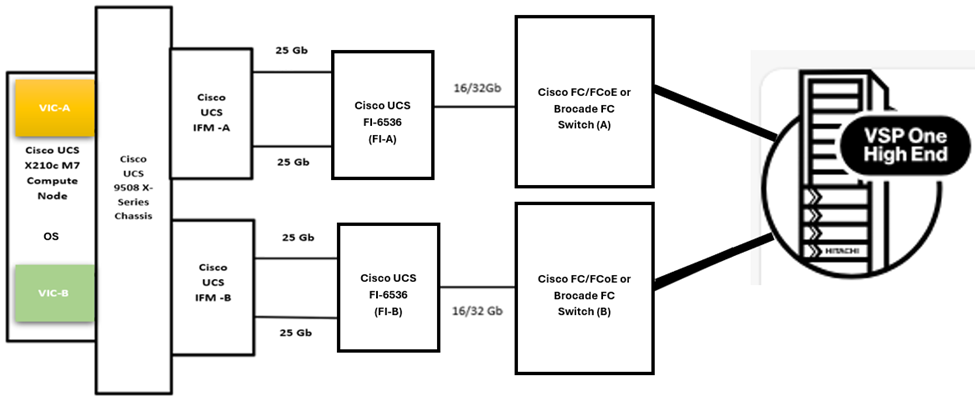
Cisco UCS SAN Boot Policy in Intersight Managed Mode or IMM with a Hitachi VSP One BHE Storage System.
This section describes the process of creating a Boot Order Policy to enable access to the storage LUN.
1. Log in to Cisco UCS Intersight using your account credentials and appropriate role at https://intersight.com/.
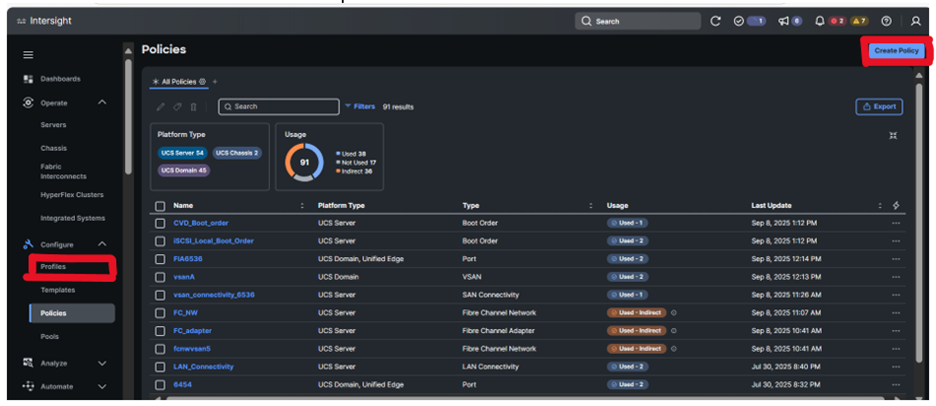
2. To create the Boot policy, navigate to the Policies tab present under configure tab, and select Policies. Then click on create policies.
3. Select Boot Order. Finally click on start to create SAN-Boot Policy.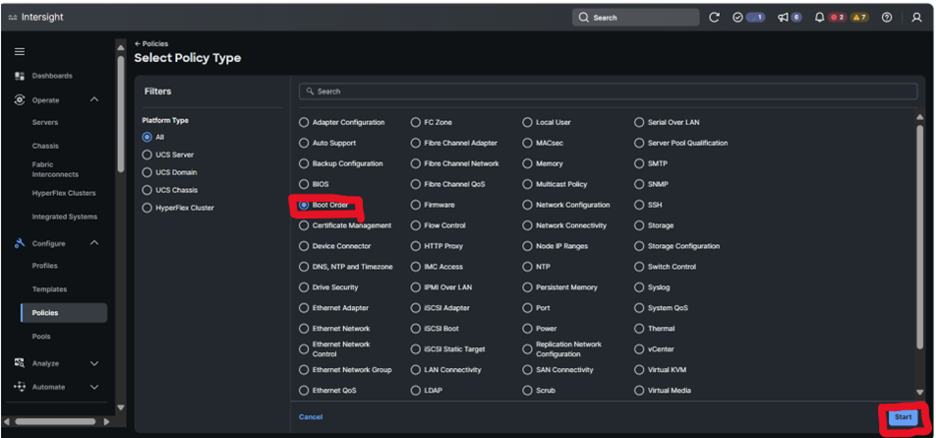
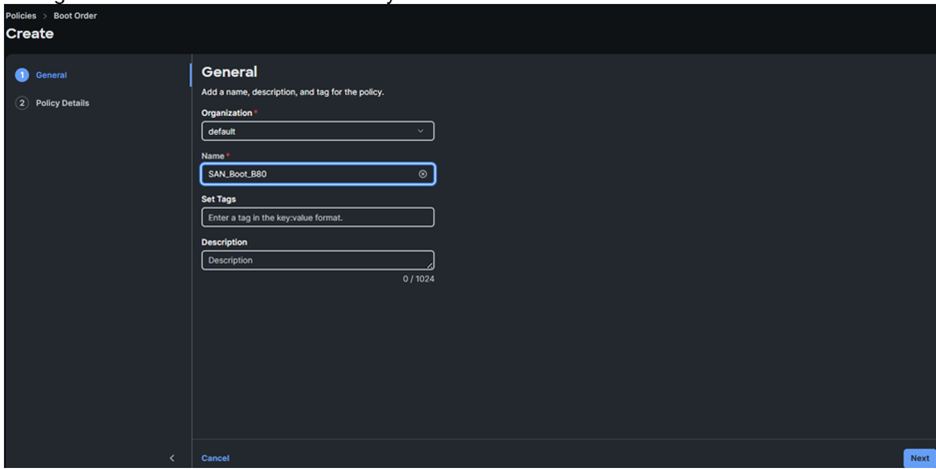
4. Let’s give a name to the Boot Order Policy. Click on Next.
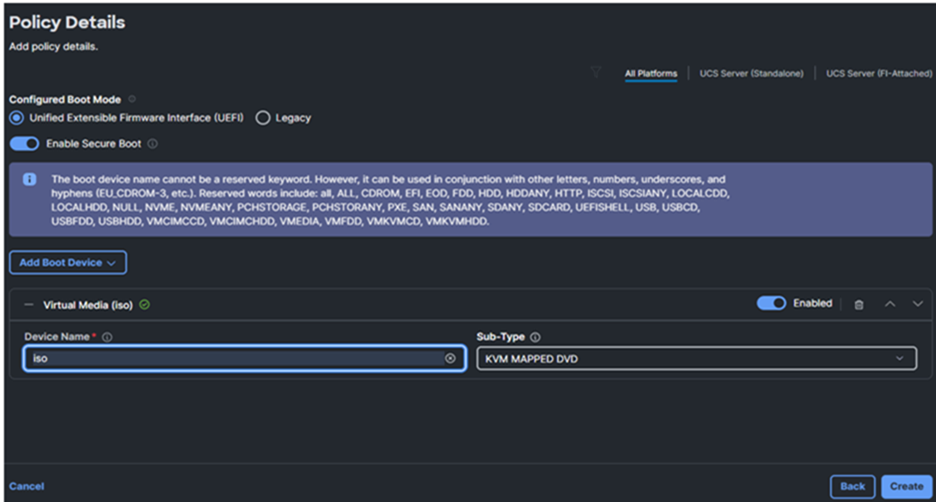
5. Enable Secure Boot or keep it as disable according to requirement. In this case, we are enabling it. Select Boot Mode as UEFI or Legacy as per requirement. To install the OS from boot media, click on Add Boot Device to select Virtual Media. Give device name. Select the sub type for the selected device type from the drop-down list. In our case it is KVM Mapped DVD.
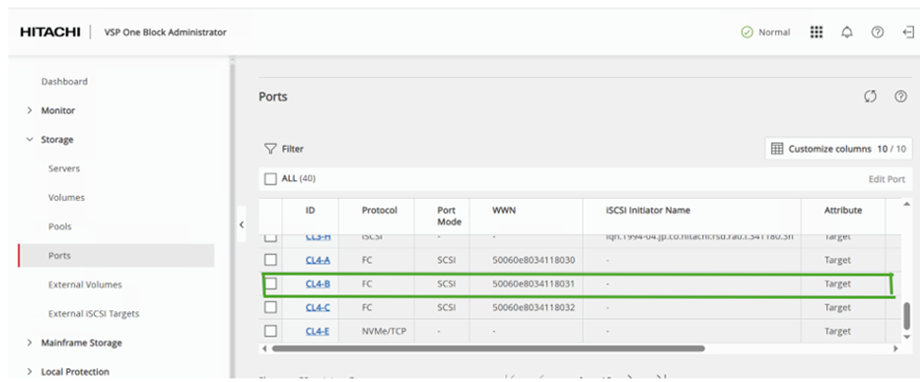
6. Next, click again on Add Boot Device and then select SAN-Boot from the drop-down list. Give device name and interface name “fc0”. Keep “0” for the Boot Target LUN. Enter the WWN of the port through which the Hitachi storage LUN will be accessed for SAN-Boot. To get the required port WWN, log in to the VSP One Block Administrator and navigate to the port settings as shown below.
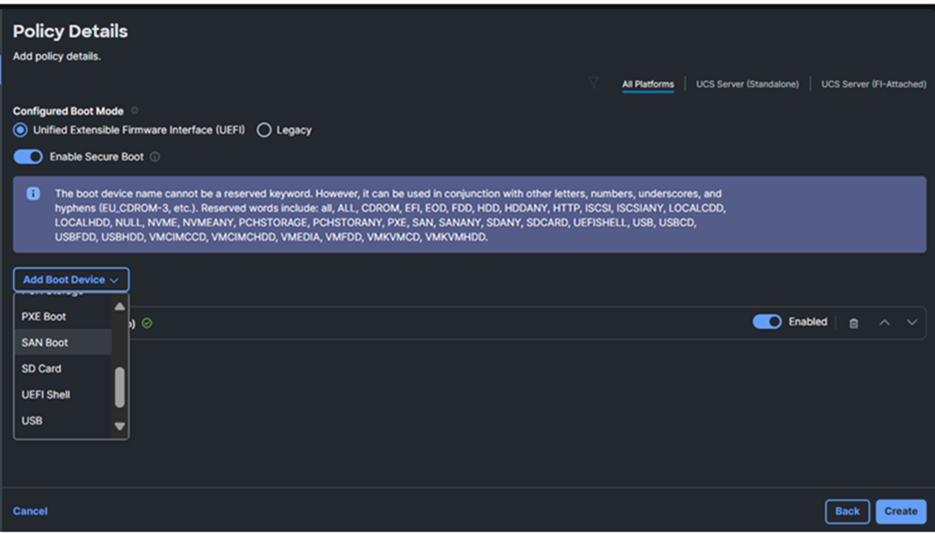
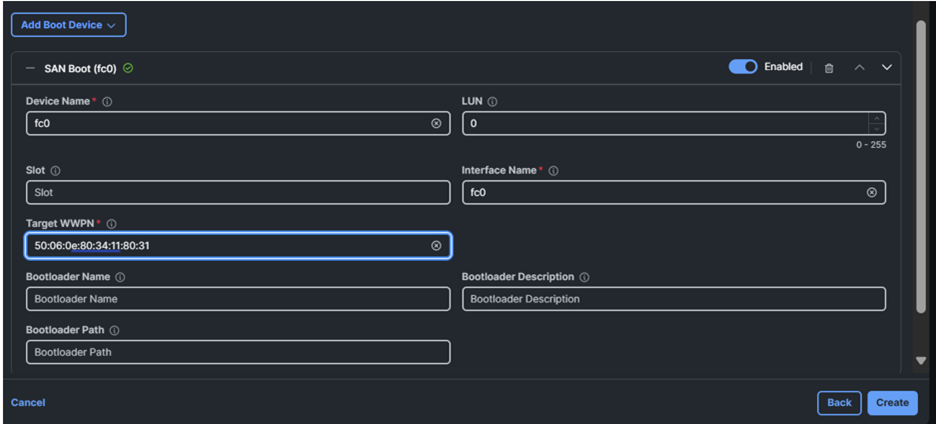
Add another SAN-Boot in similar way.
In this way we are adding primary and secondary path i.e. fc0 and fc1 respectively through which SAN-Boot Hitachi Storage LUN can be accessed
Click on create. You can see a pop up Successfully created policy SAN_Boot_B80.
The newly created policy is now available for use in the Boot Policies tab.
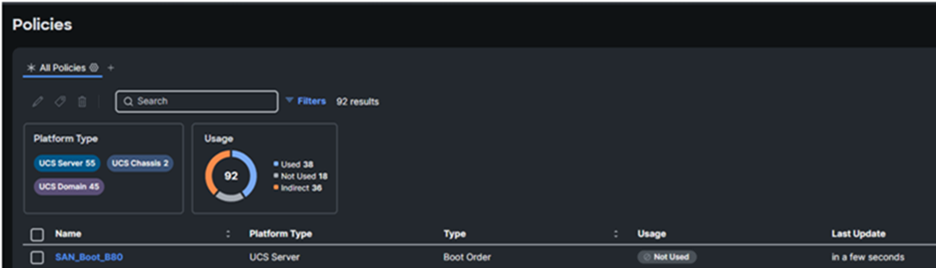
7. You can edit the created boot order if you need to make any changes or need to make any corrections you can perform it. Lastly save it after making any changes. So that the changes are effective.
Conclusion
After creating the Boot Order Policy, add the WWPNs of the vHBA and the storage array to the upstream switch zone configuration. Next, configure the storage by creating a host group using the WWPNs of the vHBA and assigning the necessary LUNs. Finally, associate the Boot Order Policy, along with any other required policies, within the service profile and complete the profile deployment. This ensures that the storage LUN is accessible during the boot process, enabling successful installation of the operating system.
#VSPOneBlockHighEnd