FC-NVMe configuration for VMWare (local boot) using Intersight Managed Mode (IMM) with Hitachi VSP One Block High End (VSP One BHE) Storage System
Introduction
FC-NVMe stands for Fibre Channel Non-Volatile Memory Express (also sometimes referred to as NVMe over Fibre Channel, or NVMe/FC). It is a high-performance network protocol that allows NVMe storage commands to be sent over Fibre Channel networks. By replacing legacy SCSI commands with native NVMe protocols, it unlocks the true speed of modern solid-state drives (SSDs) across a shared data center network.
In a typical enterprise deployment, servers connect to this high-speed flash storage array via a Fibre Channel switch, creating a highly secure and redundant fabric. This architecture allows organizations to handle all their critical storage needs over a single network—from managing standard data volumes to handling local boot operations and dedicated job LUNs (Logical Unit Numbers) straight from the centralized storage array. By running everything through an end-to-end FC-NVMe data path—fully supported across the server OS, host bus adapters (HBAs), the switch fabric, and the storage array itself.
In this blog, we’ll show you how to create an FC-NVMe configuration on Cisco UCS Intersight in End Host Mode (EHM) using VSP One BHE and the FC Protocol.
What is FC-NVMe?
At its core, FC-NVMe is a network protocol designed to bring the blazing speed of local NVMe storage to an enterprise-grade network fabric.
To understand why it is such a massive leap forward, it helps to look at how storage communication has evolved. Traditionally, data centers relied on the SCSI (Small Computer System Interface) protocol to move data between servers and storage arrays over Fibre Channel networks. While SCSI was incredibly reliable, it was built in the era of spinning hard drives. When fast Solid-State Drives (SSDs) arrived, the legacy SCSI protocol became a massive performance bottleneck.
FC-NVMe takes that exact same efficient, high-speed NVMe language and wraps it inside Fibre Channel packets. This allows the NVMe protocol to travel across your existing network switches and cables without losing its massive speed advantages.
What is SAN Connectivity Policy in Cisco UCS Intersight and how it is related to FC-NVMe?
A SAN Connectivity Policy in Cisco UCS is a configuration policy that defines how a server connects to a Storage Area Network (SAN) fabric by specifying the layout, fabric assignments, and network settings for virtual Host Bus Adapters (vHBAs). Linked directly to service profiles in Cisco UCS Intersight Managed Mode, it ensures consistent, automated storage networking across multiple servers. In an FC-NVMe deployment, this policy is critical because it explicitly enables the vHBAs to support the NVMe-oF protocol alongside or instead of legacy SCSI, while ensuring that in End Host Mode (EHM), these traffic paths are correctly pinned to Fabric Interconnect uplinks to deliver the direct, lossless, and ultra-low latency connectivity that FC-NVMe requires.
Focus of This Guide
This blog provides a targeted look at configuring FC-NVMe for VMware (local boot) using VSP One BHE via Cisco UCS Intersight.
To keep things concise, we skip the standard server profile setup and focus entirely on:
- Configuring the SAN Connectivity Policy for FC-NVMe.
- Key parameters required for Hitachi VSP One BHE integration.
Value Proposition
Engineered for modern virtualized and consolidated environments, Hitachi VSP One BHE storage system delivers proven, enterprise-class performance. Pairing it with Fibre Channel NVMe (FC-NVMe) unlocks the ultra-low latency, high throughput, and predictability required for your most critical business workloads.
Optimized for Cisco UCS environments, Hitachi VSP One BHE leverages ultra-low latency FC-NVMe to accelerate business-critical workloads from the compute layer to the storage array. By combining Cisco’s unified fabric architecture with Hitachi’s industry-leading data availability and built-in cyber resilience, organizations benefit from a highly secure, energy-efficient, and future-proof storage modernization
For detailed, component-level compatibility information, see the Product Compatibility Guide (PCG). https://compatibility.hitachivantara.com/products/interop-matrix
Block Diagram
The following figure illustrates a VSP One BHE storage system and a host equipped with a dual-port Fibre Channel adapter. One FC port is directly connected to the VSP One BHE target port CL1-A, while the other FC port connects to the CL2-A target port via the FI-6536 Fabric Interconnect and Cisco upstream switches. Through ports CL1-A and CL2-A, the Cisco UCS server accesses the storage LUN.
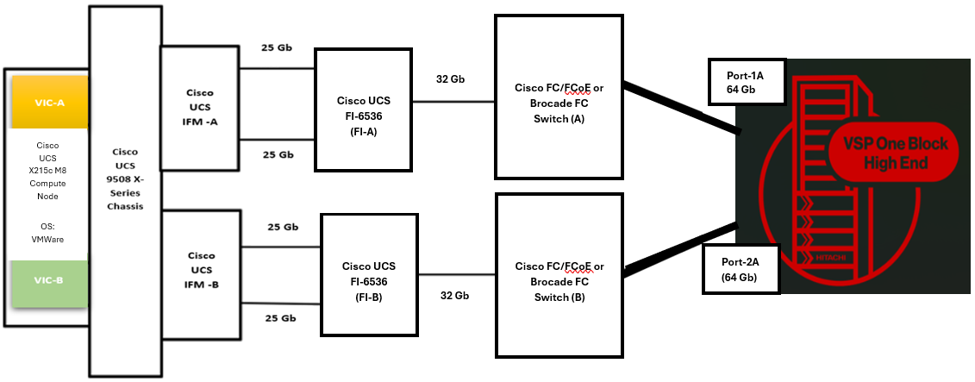
Cisco UCS FC-NVMe configuration for VMware (local boot) using Intersight Managed Mode or IMM with a Hitachi VSP One BHE Storage System.
To configure your environment, utilize the official guide: Configuring FC-NVMe on VMware ESXi Host Using VSP One Block High End Storage Systems for the following sections:
- Storage Side Configuration
- Host Side Configuration (Note: You do not need to manually enable the NVMe module or change the Emulex HBA FC4 type on the host as described in the link. This is handled natively within the Cisco UCS SAN Connectivity Policy).
The next section walks through creating the Cisco UCS SAN Connectivity Policy required to enable access to your storage namespaces (LUNs).
1. Log in to Cisco UCS Intersight using your account credentials and appropriate role at https://intersight.com/.
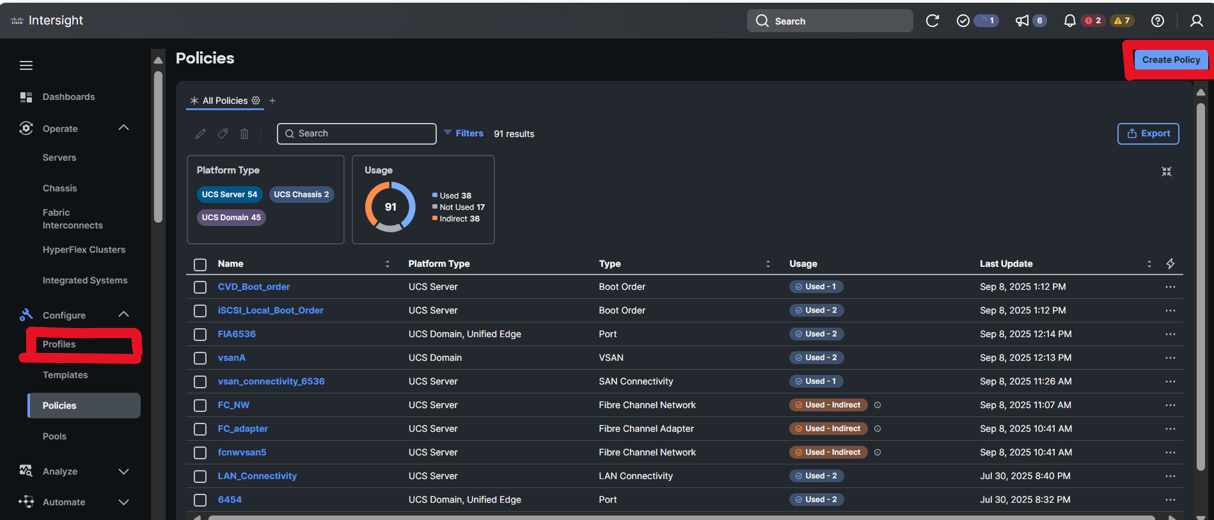
2. To create the SAN Connectivity policy, navigate to the Policies tab present under configure tab, and select Policies. Then click on create policies.
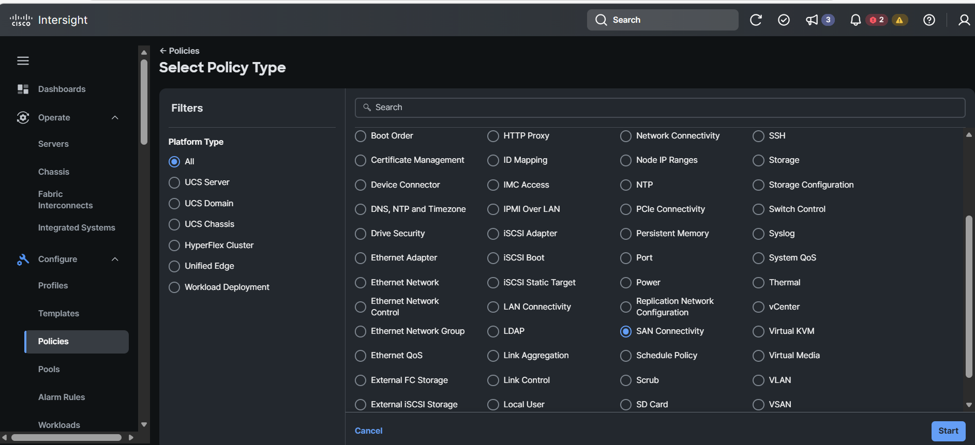
3. Select SAN Connectivity. Finally click on start to create SAN Connectivity
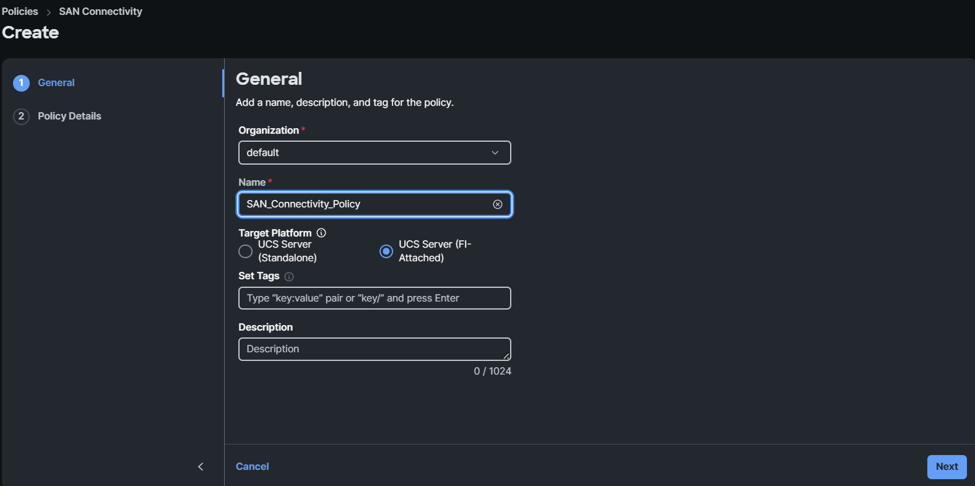
4. Let’s give a name to the SAN Connectivity. Click on Next.
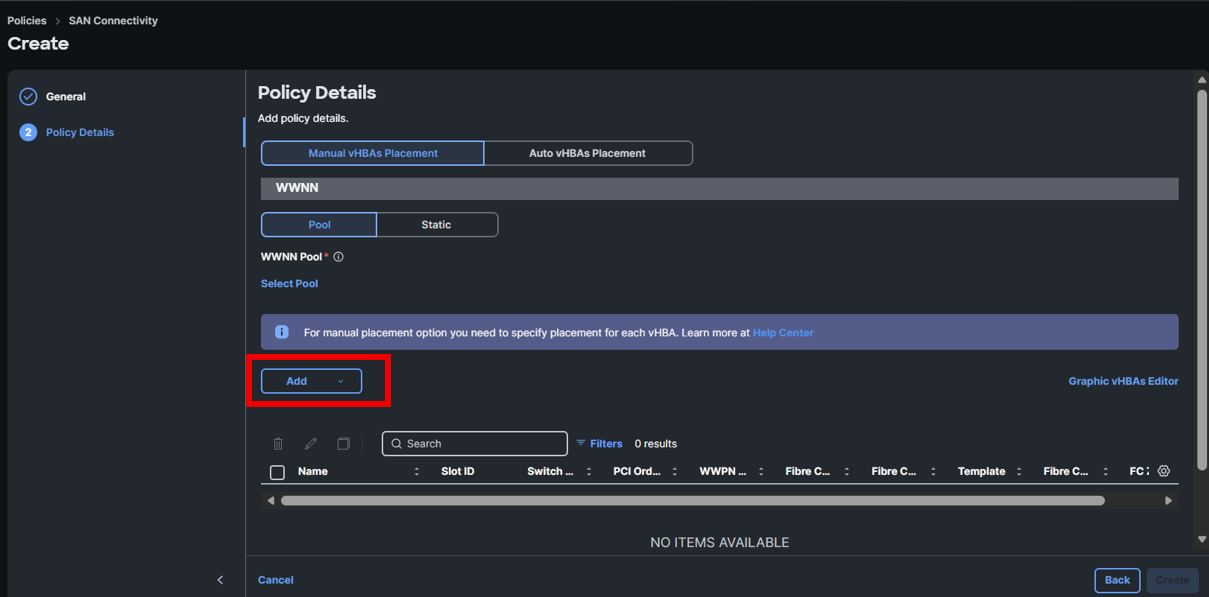
5. Click on Add to create vHBA.
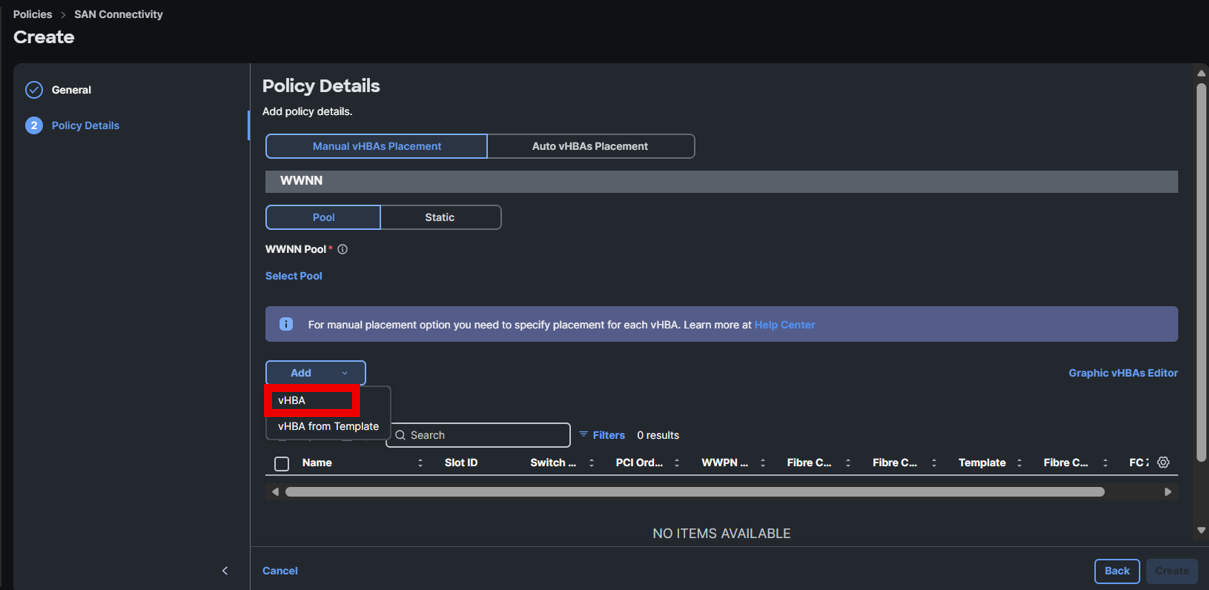
6. From drop down select vHBA.
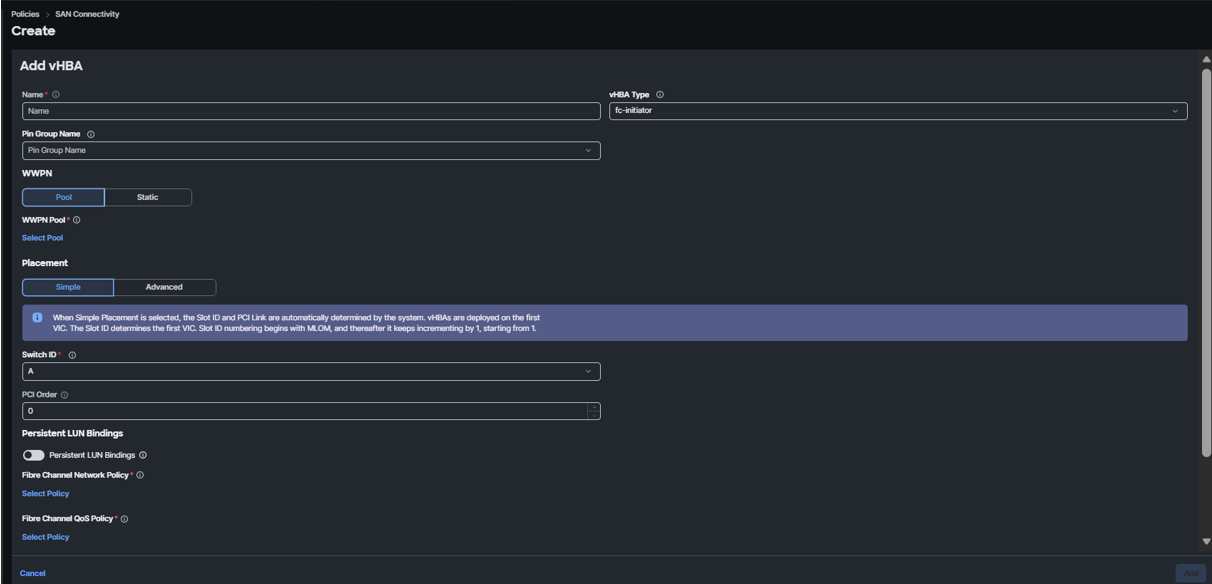
7. Below screen will open
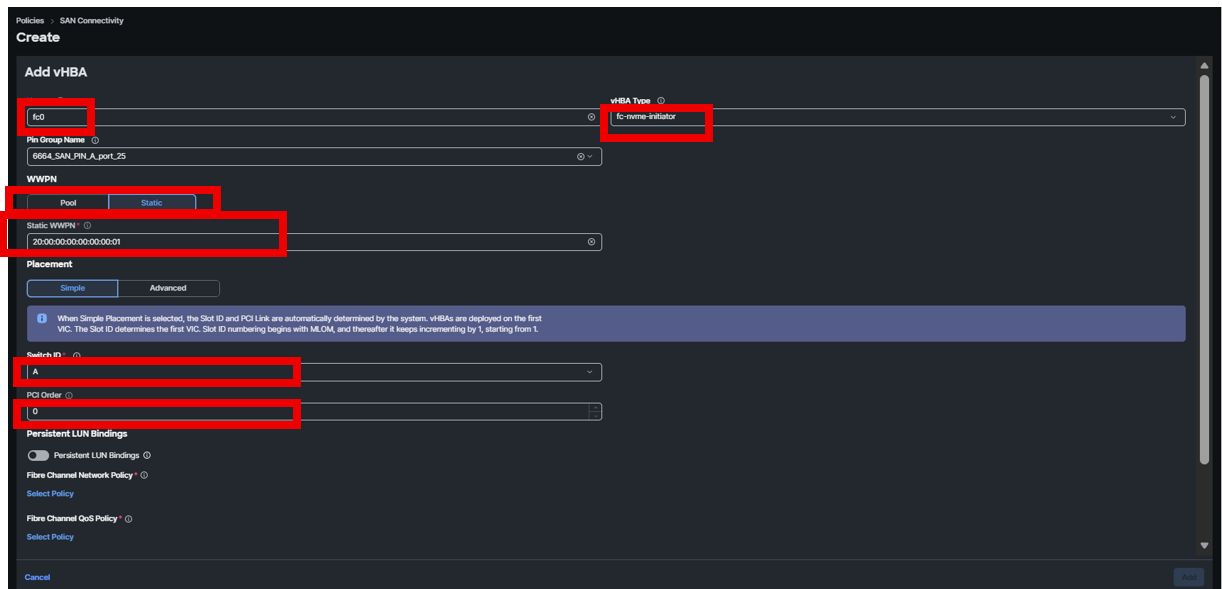
8. Configure the vHBA properties by specifying the Name, WWPN (Static or Pool), Switch ID, and PCI order. Crucially, ensure the vHBA Type is set to FC-NVMe Initiator, which is the fundamental setting for this deployment. Finally, select the appropriate Pin Group. (Note: Pin Groups must be pre-configured to appear in this selection; their initial creation is outside the scope of this post.)
9. Scroll down and select policy for Fibre Channel Network Policy. Click on Create Policy to create the policy.
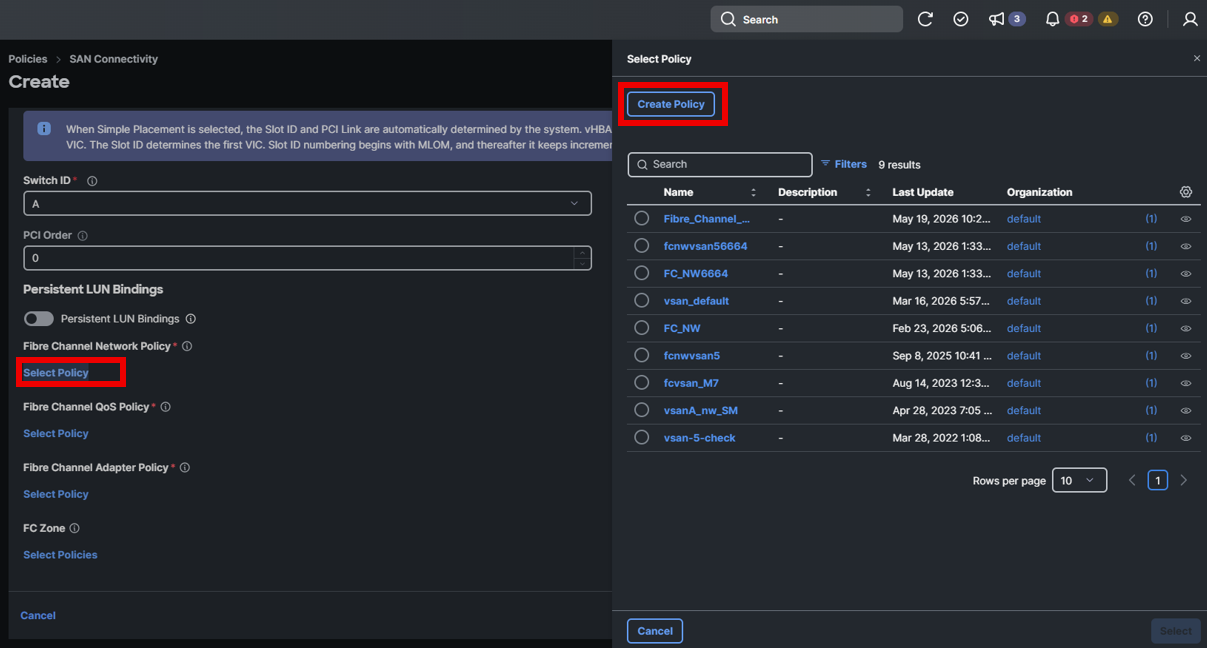
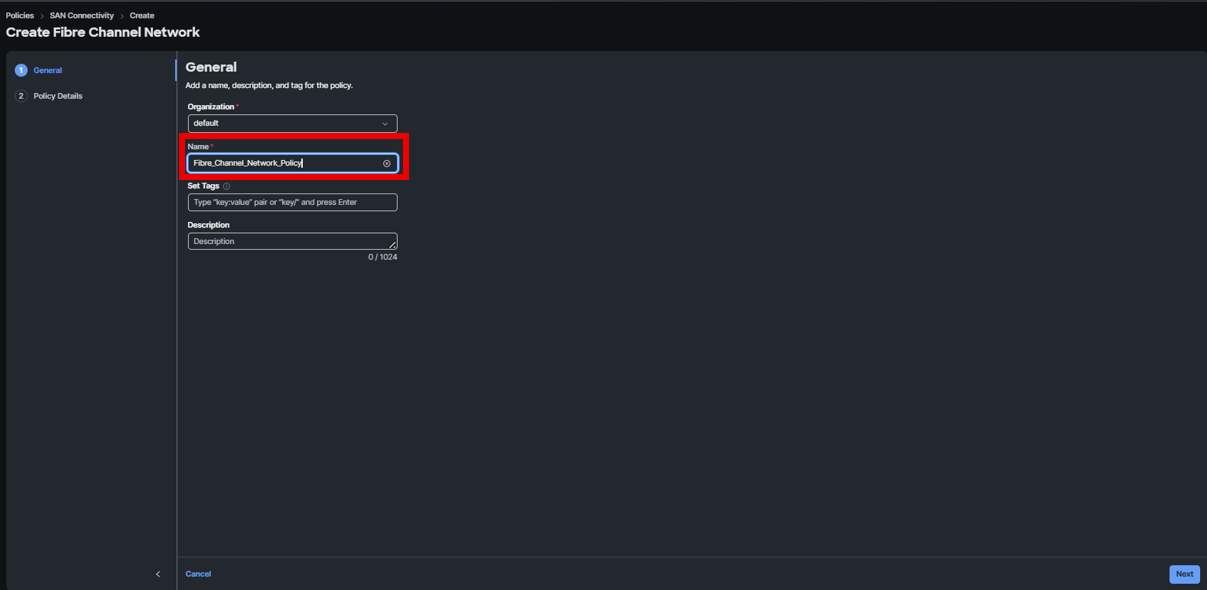
10. After clicking on create policy, below screen comes. Give a policy name. Click on next.
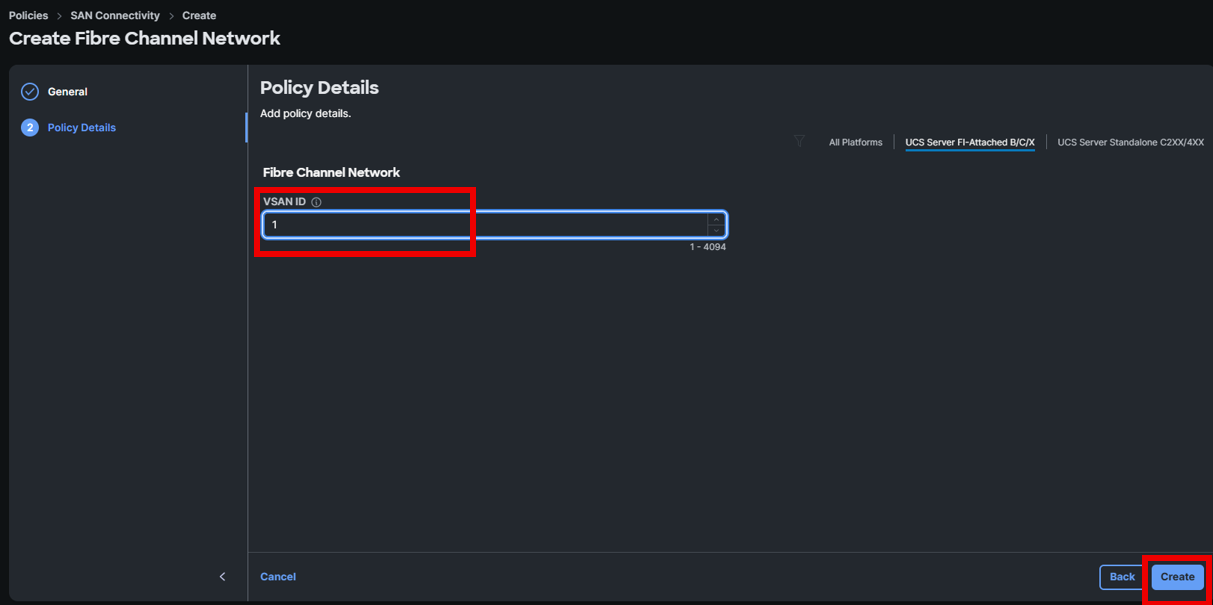
11. Select the VSAN ID. For example, if Fabric Interconnect port FI-6536: port-33 connects to MDS switch 9148T: port-1, your Intersight configuration must match the MDS configuration. Since port-1 on the MDS is configured for VSAN 1, we select 1 here (as shown in the screenshot below).
Once the VSAN ID is selected, click Create.
12. Similarly, click on Select Policy and select Create Policy to generate both the QoS Policy and the Fibre Channel Adapter Policy. Provide a descriptive name for each (e.g., Fibre_Channel_QoS_Policy and FC_adapter) and leave all default values as they are. Note that no FC zoning is required for this setup. Once complete, click Add.
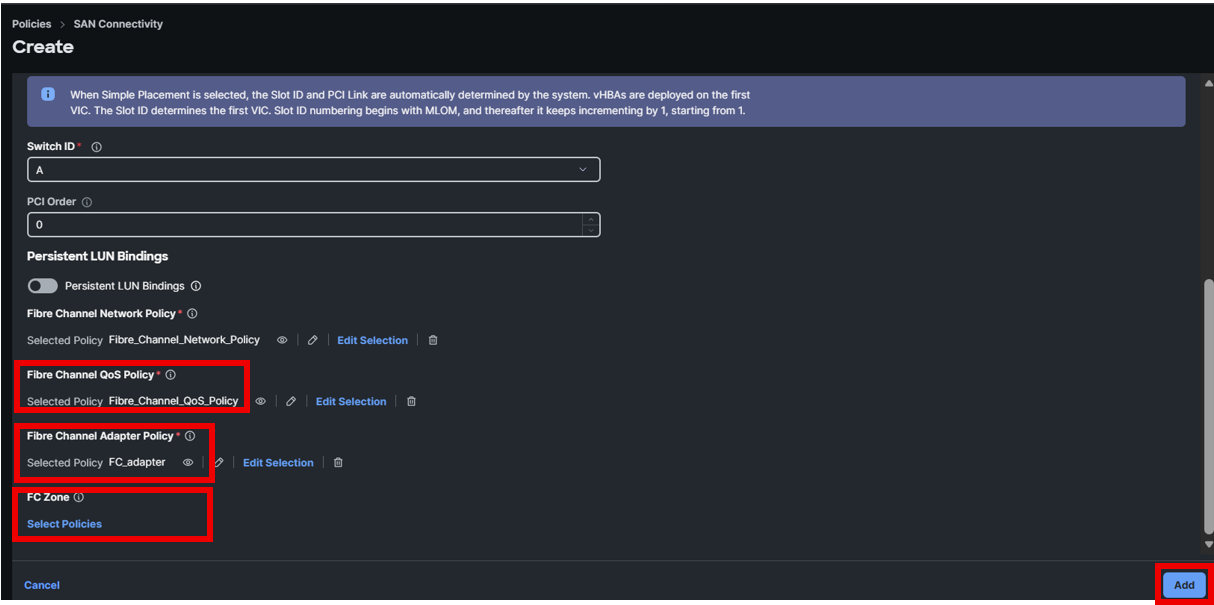
13. After clicking add, the newly created configuration will appear as shown below.
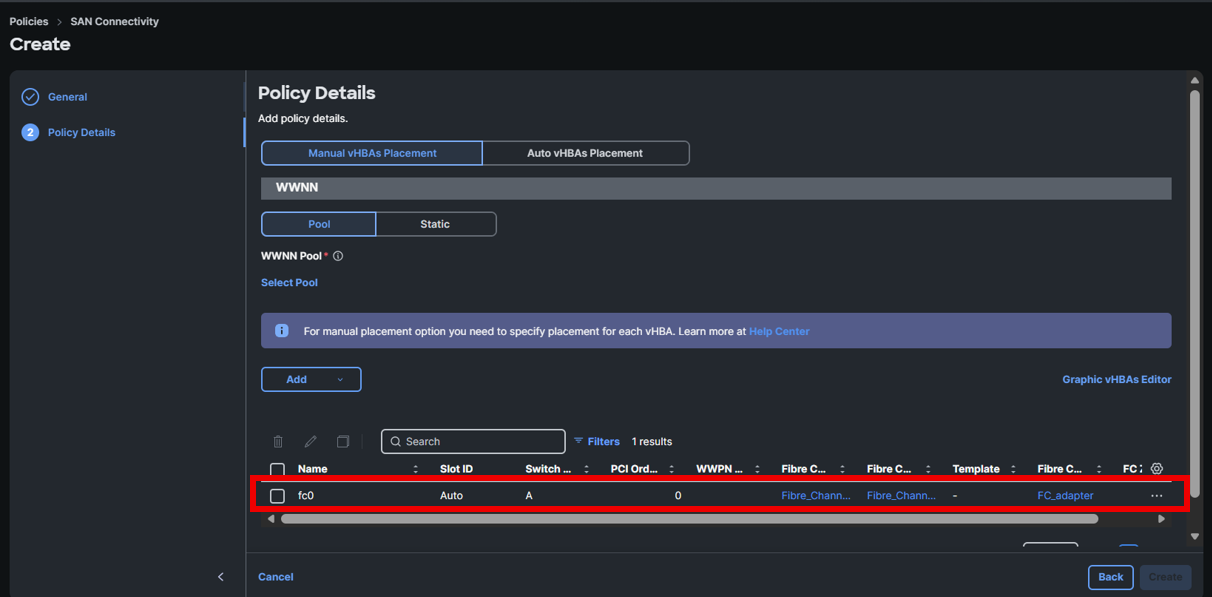
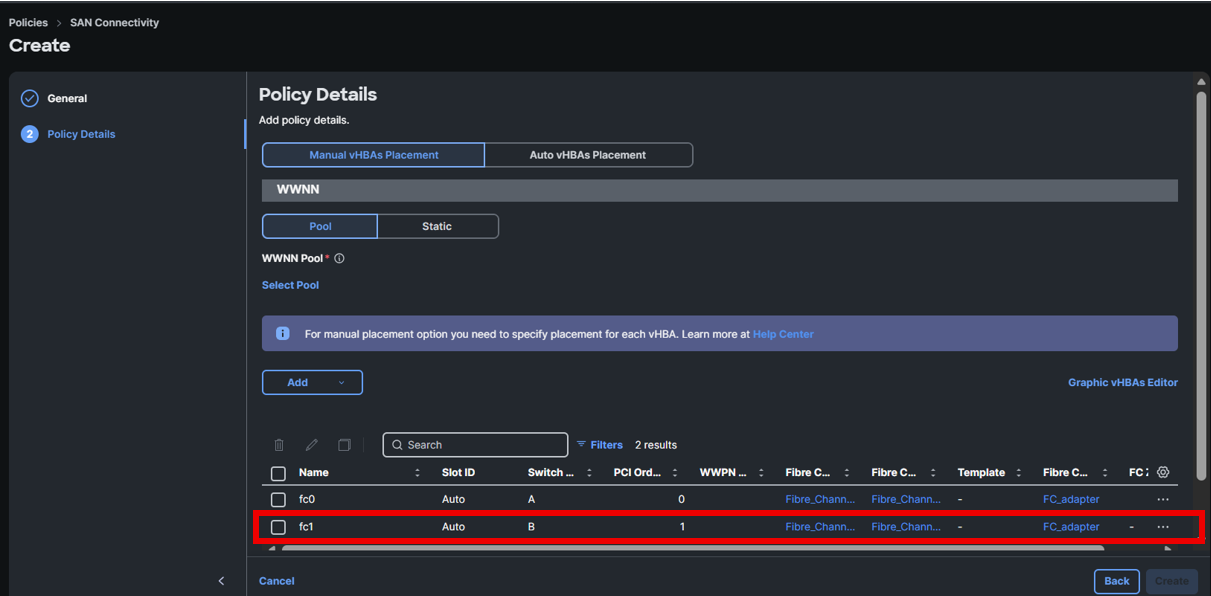
14. Repeat the steps to create a second vHBA, naming it fc1 as shown below.
15. Select auto vHBA placement and WWNN pool either static or pool
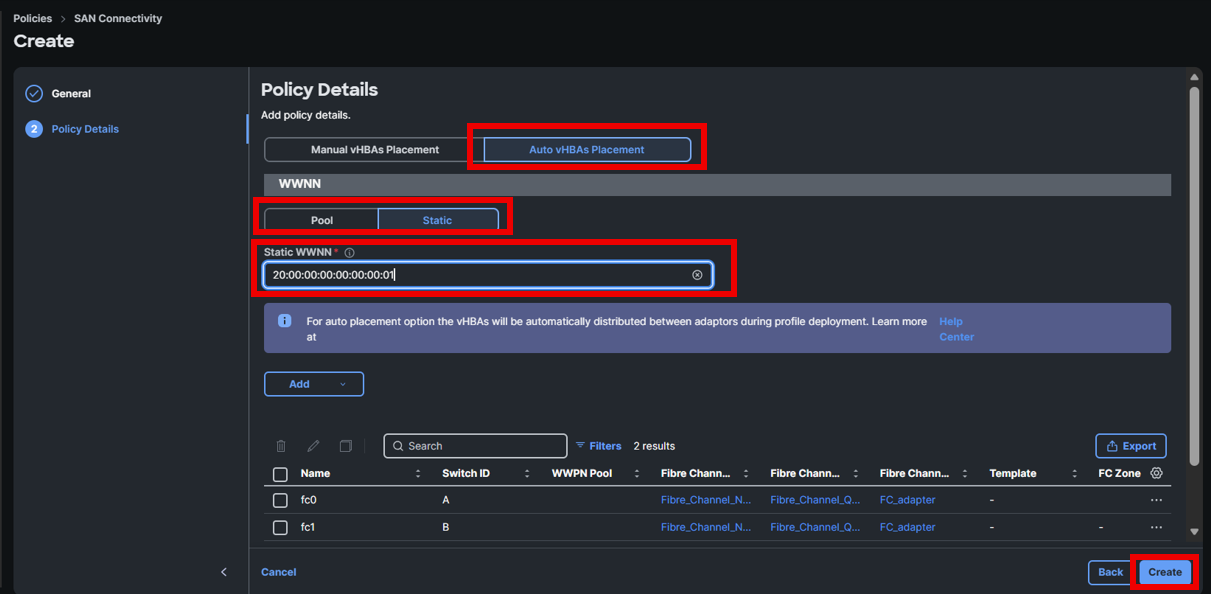
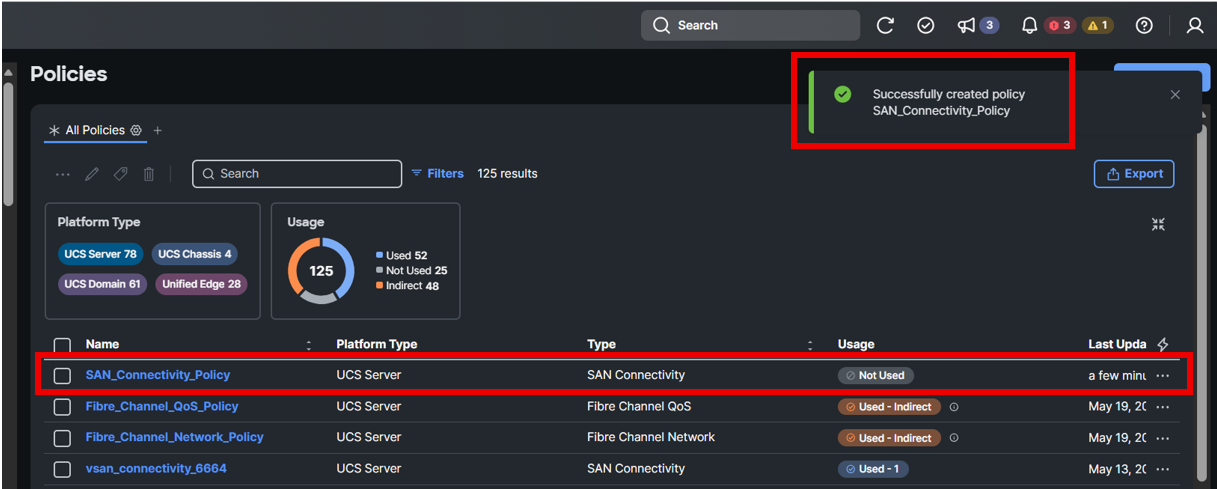
16. Click Create. A pop-up message will confirm the successful creation of the policy.
Conclusion
Finally, associate the Policy, along with any other required policies, within the service profile and complete the profile deployment. This ensures that the VSP One BHE Storage System LUN is accessible.
Boost your mission-critical workloads with VSP One BHE’s comprehensive NVMe over Fibre Channel support, available starting in SVOS version 10.5.3. This enterprise-class NVMe-oF integration delivers the ultimate in performance, scalability, and availability for modern data centers.
#VSPOneBlockHighEnd